Learning Claude Code - From Context Engineering to Multi-Agent Workflows
This post captures what I learned from the Udemy course “Claude Code Crash Course: Claude Code in a Day”.
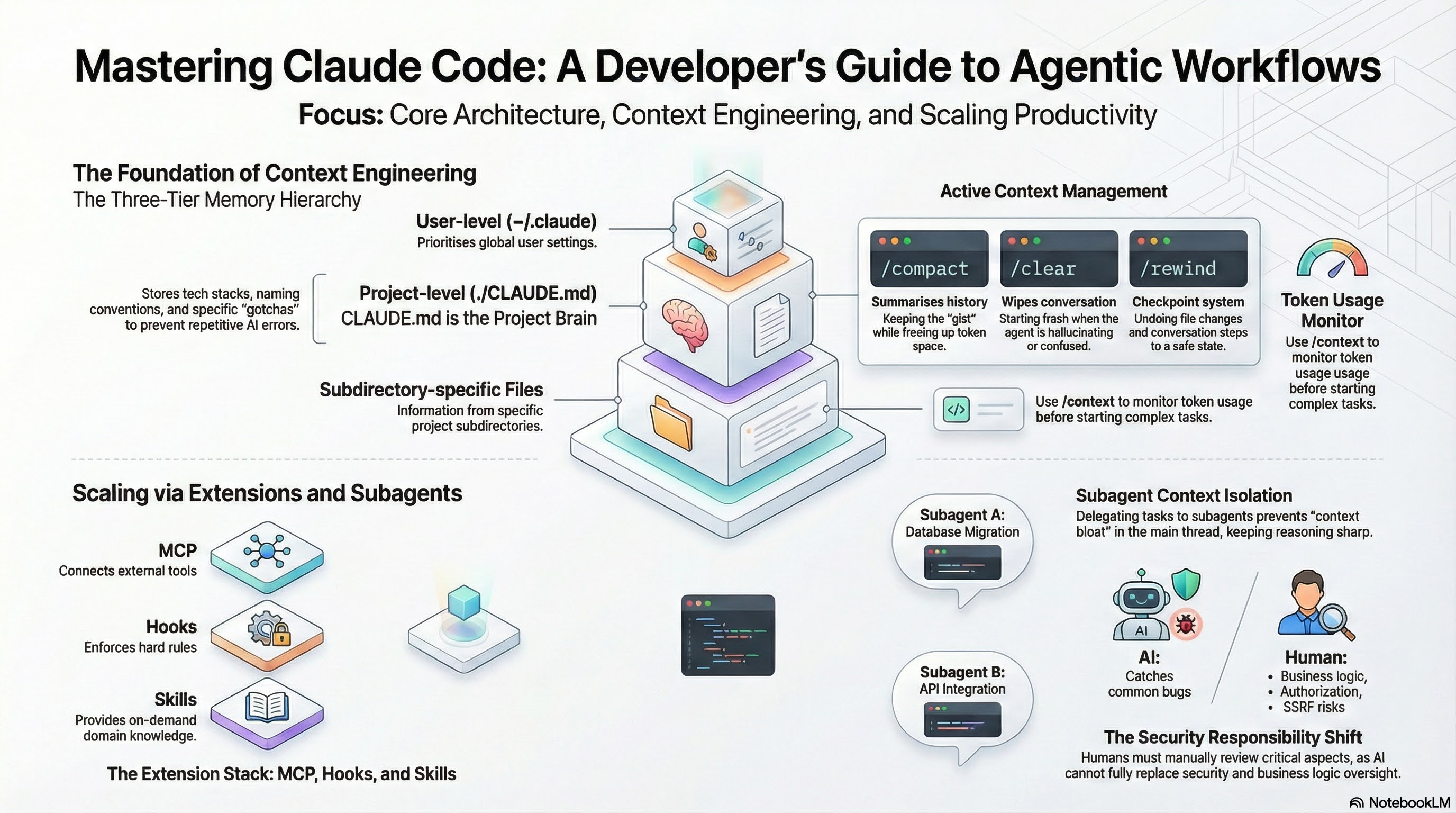
If you’ve been following AI tooling trends, you’ve noticed something interesting: AI companies are going direct-to-developer. Cursor showed us what’s possible when you embed AI deeply into a code editor. But now Claude (Anthropic) and other foundation model providers are shipping their own coding agents. This isn’t just competition. It’s a signal that the “AI wrapper” layer is collapsing, and the companies building the models want to own the developer experience.
As an ML Engineer, I spend my days building systems that learn from data. But I’m also a practitioner who uses AI tools daily. When Claude Code launched, I wanted to understand it deeply, not just use it casually. What makes it different from Cursor or Copilot? What new patterns does it enable? And most importantly: how do I get the most out of it for real engineering work?
I’ll walk through the core concepts (context engineering, memory hierarchies, MCP), the practical commands you’ll use daily, and the advanced patterns like subagents and parallel workflows. Whether you’re evaluating Claude Code for your team or just curious about where AI-assisted development is heading, this should give you a clear picture.
If you are a video learner, I created a video using Notebook LM, which summarizes key concepts from the blog, watch here - Learning Claude CodeCore Concept: Context Engineering
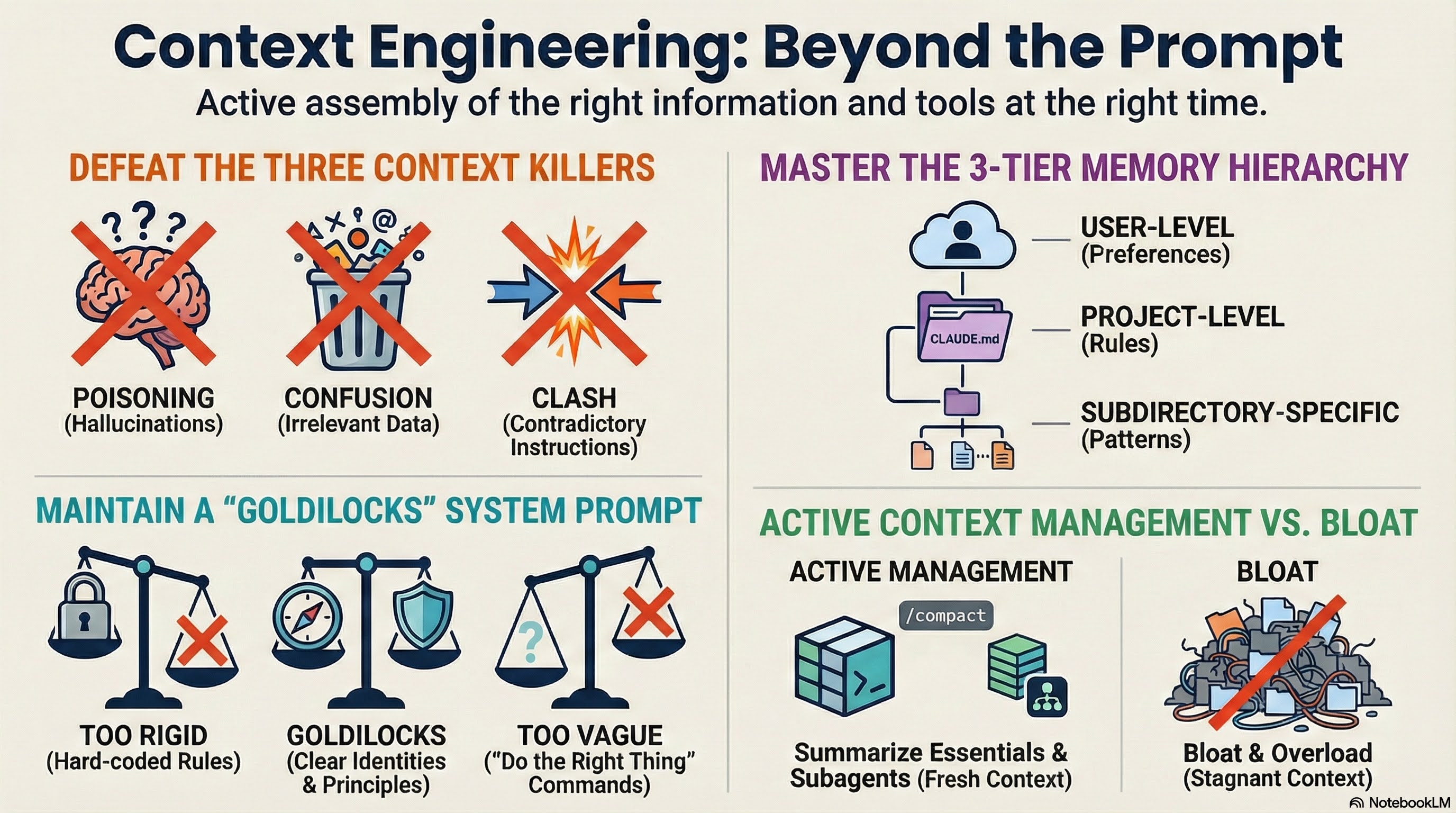
If you’ve done any prompt engineering, context engineering is the next step. The idea is simple: prompts are static, but context is dynamic. Your agent needs information from many sources (your input, previous interactions, tool outputs, external data) and assembling the right context at the right time is what separates agents that work from agents that fail.
The course frames context engineering failures around three failure modes:
- Context poisoning: A hallucination enters the context and corrupts every response that follows. Once bad information gets in, it spreads.
- Context confusion: Irrelevant context pulls the model’s attention in the wrong direction. You asked about database design but your frontend docs are drowning out the signal.
- Context clash: Contradictory information in the same context. The model gets pulled between conflicting instructions or facts.
The takeaway here is “garbage in, garbage out,” but applied specifically to agents. LLMs can’t read your mind. They need the right information AND the right tools at the right time.
Claude Code implements four strategies to manage this:
- Writing context: A three-tier memory hierarchy (user, project, dynamic imports) that persists information across sessions
- Intelligent retrieval: Automatically searching folders for relevant CLAUDE.md files and prioritizing recently-used context
- Context compression:
/clearwipes everything,/compactsummarizes to essentials - Context isolation: Subagents run in their own context windows, preventing main conversation bloat
The course also covers the “Goldilocks zone” for system prompts. Too specific and you’re treating the LLM like a state machine with hard-coded if/else logic. Too vague and you’re saying “do the right thing” without defining what “right” means. Good prompts establish clear identity, empower rather than constrain, and teach principles instead of enumerated rules.
Getting Started: The Basics
Before you can do anything interesting with Claude Code, you need to understand how it stores and retrieves information. Most tutorials jump straight to commands without explaining the underlying system. Let’s start there.
Installation
Getting Claude Code running is straightforward:
npm install -g @anthropic-ai/claude-code
cd your-project
claude
This drops you into an interactive terminal session (no GUI, no VS Code extension needed). But Claude Code doesn’t know anything about your project yet. It’s a blank slate every time you start.
The /init Command and CLAUDE.md
Run /init in your project directory. Claude will analyze your codebase and generate a CLAUDE.md file at the root. This file becomes Claude’s memory of your project: coding conventions, architecture decisions, file structure, anything it needs to work effectively.
Here’s what a real CLAUDE.md might look like:
# Project: recommendation-service

## Tech Stack
- Python 3.11, FastAPI
- PostgreSQL with SQLAlchemy
- Redis for caching

## Conventions
- All API endpoints follow REST naming
- Tests go in tests/ mirroring src/ structure
- Use Pydantic for all request/response models

## Important Context
- The ranking model lives in src/ranker/ and uses PyTorch
- Never modify files in src/legacy/ without explicit approval
You can and should edit this file manually. The auto-generated version is a starting point. Here’s an example: without explicit guidance, Claude kept suggesting print() statements for debugging in the codebase. You can add “Use structured logging using python logging module , never print()” to CLAUDE.md, the problem disappears. Add the patterns your team follows, the things Claude keeps getting wrong, and the directories it should ignore.
The Three-Tier Memory Hierarchy
Claude Code reads context from three levels, with more specific context overriding more general:
┌─────────────────────────────────────────────┐
│  ~/.claude/CLAUDE.md (User-level)           │
│  Your personal preferences across projects  │
│  e.g., "Always use type hints"              │
└─────────────────┬───────────────────────────┘
                  │ overridden by
                  ▼
┌─────────────────────────────────────────────┐
│  ./CLAUDE.md (Project-level)                │
│  Tech stack, conventions, architecture      │
│  Created by /init                           │
└─────────────────┬───────────────────────────┘
                  │ overridden by
                  ▼
┌─────────────────────────────────────────────┐
│  ./src/auth/CLAUDE.md (Dynamic imports)     │
│  Subdirectory-specific patterns             │
│  Loaded when working in that directory      │
└─────────────────────────────────────────────┘
User-level (~/.claude/CLAUDE.md): Personal preferences that apply everywhere. Maybe you always want type hints, or you prefer pytest over unittest. This follows you across all projects.
Project-level (./CLAUDE.md): Project-specific context. Tech stack, conventions, architecture. This is what
/initcreates.Dynamic imports: Other CLAUDE.md files scattered throughout your codebase. Put one in your
src/auth/folder to explain your authentication patterns. Claude will find and load it when working in that directory.
Start with /init, then spend 10 minutes editing the generated CLAUDE.md. Add your team’s PR conventions, your testing requirements, any gotchas that would take a new engineer a week to discover. That 10 minutes will save you hours of correcting Claude later.
Essential Commands
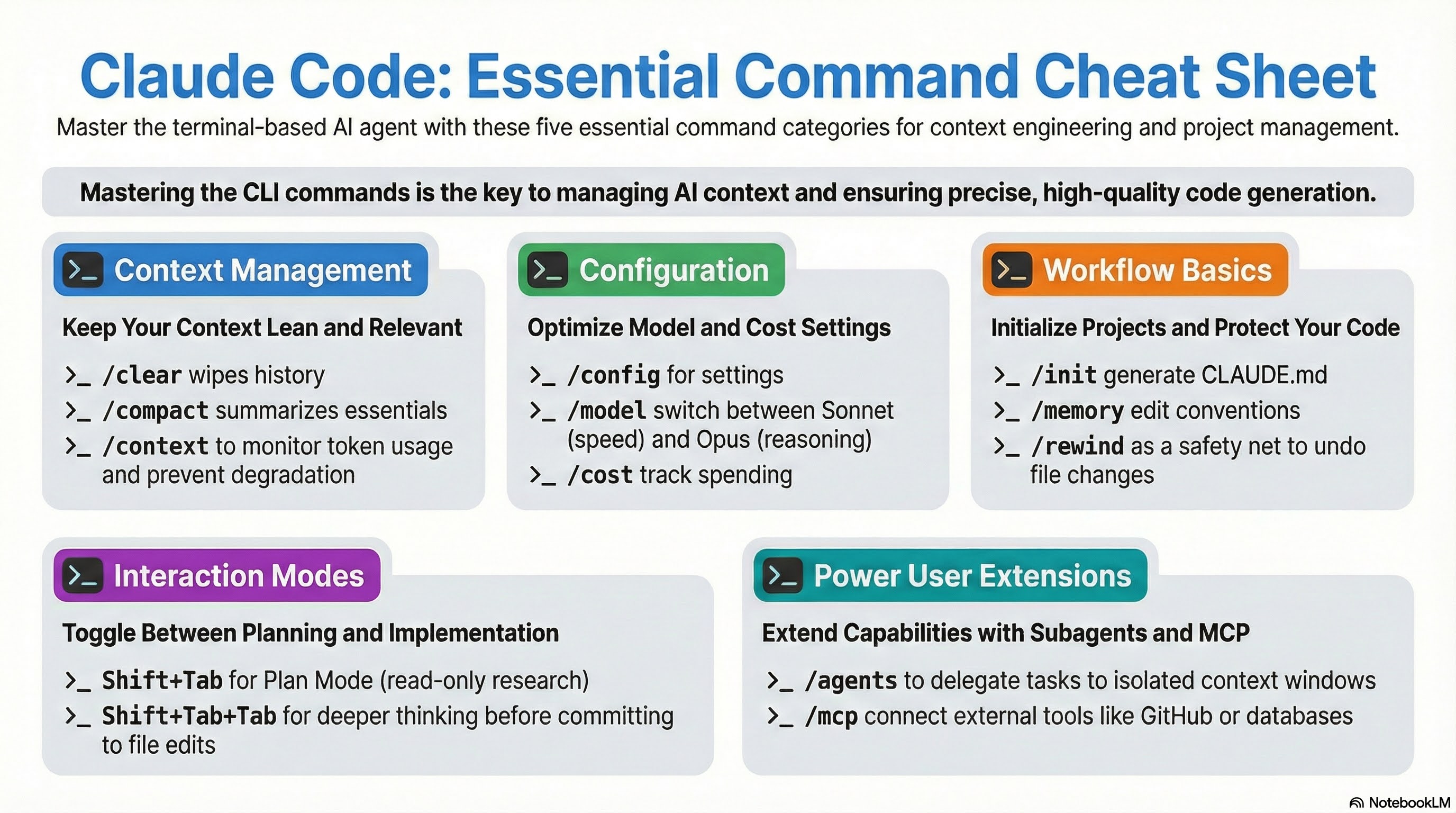
Claude Code is a terminal application, and like any good CLI tool, it’s driven by commands. But these aren’t just shortcuts. Each command maps to a context engineering strategy we discussed earlier. Understanding when to use which command is half the battle.
Context Management
These three commands control what Claude knows about your conversation:
/clear    # Wipes everything, fresh start
/compact  # Summarizes conversation to essentials, keeps key info
/context  # Shows what's consuming your context window
Use /context liberally. It breaks down token usage: system prompt, MCP tools, messages, memory files. When your responses start degrading, run this first to see what’s eating your budget. I’ve found MCP tools are often the silent killer here.
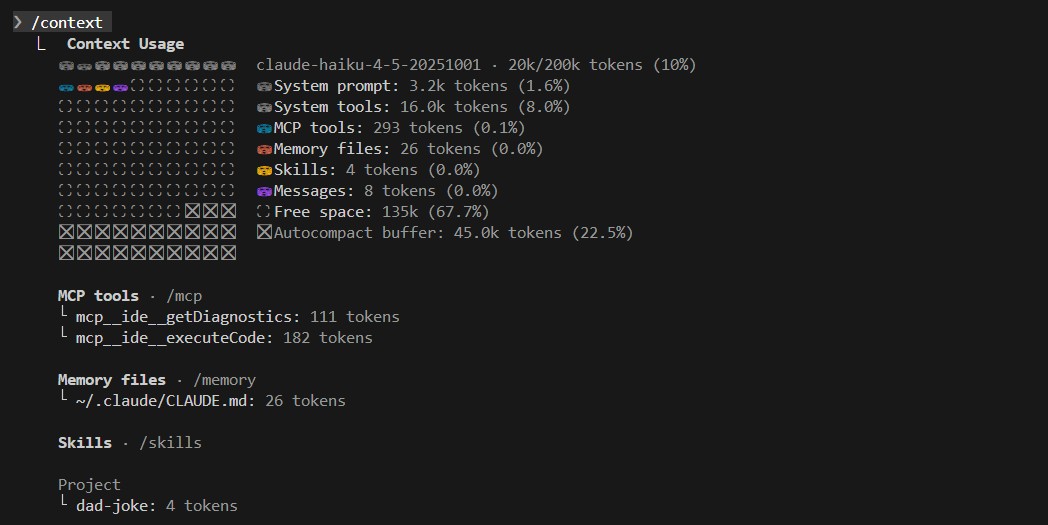
/context snapshot
The difference between /clear and /compact matters. If Claude is going in circles or referencing something incorrect from earlier, /clear is your friend. If you just need more room but want Claude to remember the gist of what you’ve discussed, /compact compresses without amnesia.
Configuration
/config   # Opens settings panel
/model    # Switch between Opus and Sonnet
/cost     # Monitor token usage (API key mode only)
Model selection is situational. When I asked Sonnet to refactor a ranking module, it jumped straight to code. Opus first asked clarifying questions about performance constraints and suggested three architectural approaches before writing anything. Opus thinks harder but costs more.
Use Opus for planning and research, Sonnet for implementation. For most coding tasks, Sonnet hits the sweet spot between quality and cost.
Workflow
/init     # Analyze codebase, generate CLAUDE.md
/memory   # Open memory file in editor
/rewind   # Checkpoint system. Undo changes by prompt
The /rewind command deserves special mention. Claude Code tracks file changes made during each prompt. Press Escape twice or run /rewind to see your conversation history with indicators of which prompts touched which files. You get three restore options: code only, conversation only, or both.This is your safety net for ambitious changes that don’t pan out.
Modes
Shift+Tab toggles Plan Mode. In this read-only mode, Claude can research, analyze, and create specs but cannot edit files. Use this when you want to think through a problem before committing to implementation. Shift+Tab+Tab enables deeper thinking for complex planning tasks.
Other Useful Commands
/agents   # Manage subagents
/mcp      # View and manage MCP servers
/plugins  # Browse and install plugins
/ide      # Integrate with your IDE (Cursor, VS Code)
/git # GitHub integration setupGet in the habit of running /context before starting a complex task. If you’re already at 50% usage, you might want to /compact first or spin up a fresh session. Running out of context mid-refactor means Claude forgets the files it already changed.
Extending Claude Code
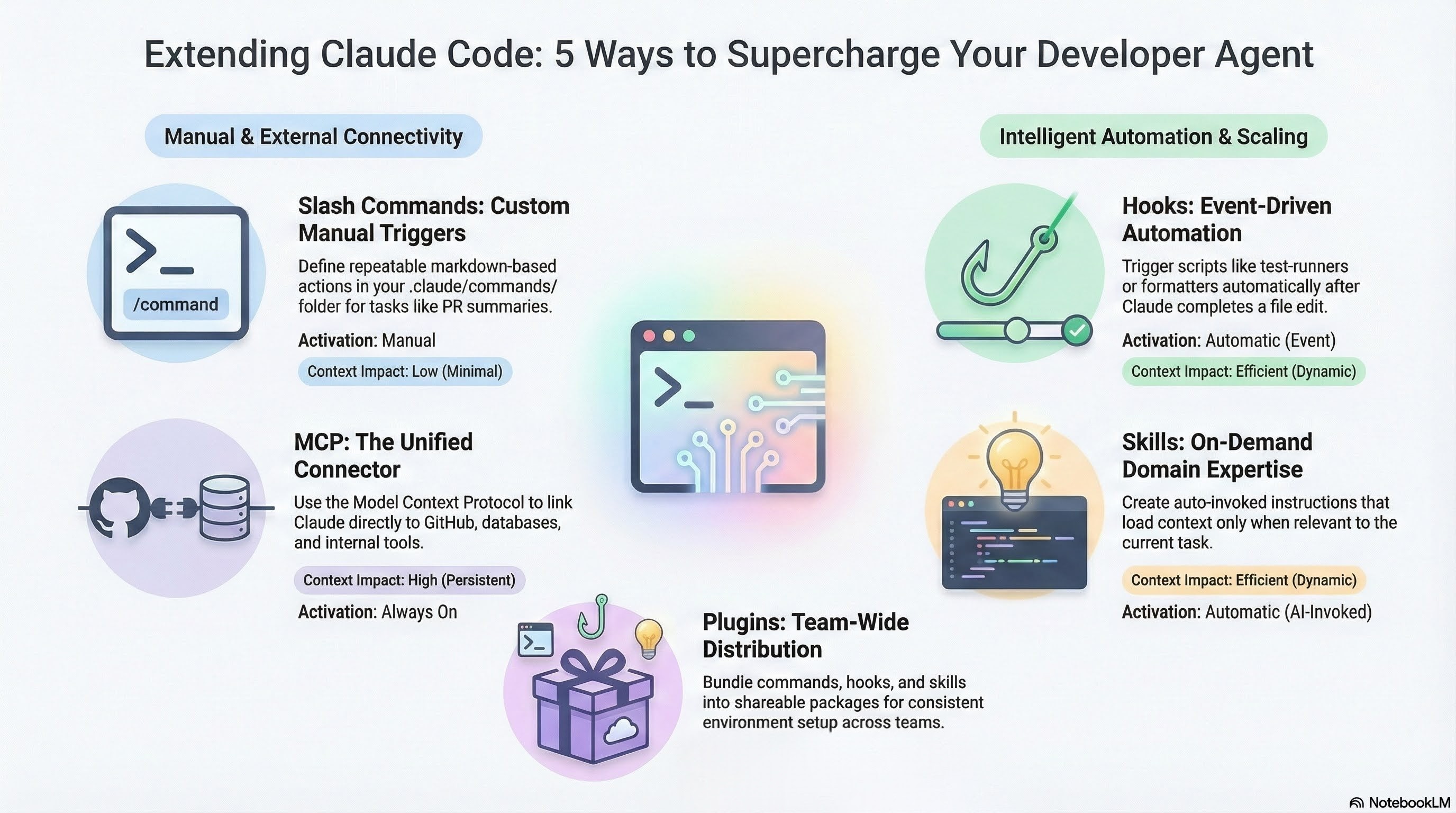
Out of the box, Claude is smart but generic. The extension system lets you teach it your patterns, connect it to your tools, and automate repetitive tasks. There are five extension mechanisms: custom commands, MCP, hooks, skills, and plugins.
Slash Commands
Slash commands are custom actions you define and trigger manually with /commandname. Unlike skills (which activate automatically) or hooks (which fire on events), commands run when you explicitly call them.
A command is a markdown file in .claude/commands/:
.claude/commands/
  review.md
  test-plan.md
  pr-summary.md
Here’s a simple example, .claude/commands/review.md:
---
description: Review code for common issues
---

Review the current file for:
1. Security vulnerabilities (SQL injection, XSS, auth bypasses)
2. Performance issues (N+1 queries, unnecessary loops)
3. Code style violations per our CLAUDE.md conventions

Format findings as a checklist with severity (high/medium/low).
Now /review is available in your session. The description appears in autocomplete when you type /.
Arguments and Interpolation
Commands can accept arguments using $ARGUMENTS:
---
description: Generate unit tests for a function
---

Write pytest tests for the function: $ARGUMENTS

Include:
- Happy path cases
- Edge cases (empty input, None, boundary values)
- Error cases that should raise exceptions

Follow our test conventions in CLAUDE.md.
Call it with /test-plan calculate_ranking_score and $ARGUMENTS becomes calculate_ranking_score.
Project vs User Commands
Like CLAUDE.md, commands exist at two levels:
- Project commands (
.claude/commands/) - Shared with your team via git. PR templates, project-specific workflows. - User commands (
~/.claude/commands/) - Personal shortcuts that follow you everywhere. Your preferred code review checklist, your debugging workflow.
You can find a whole list of practical commands in this GitHub repo - wshobson/commands
Commands are prompts you’ve optimized through repetition. When you find yourself typing the same multi-line instruction for the third time, turn it into a command. Five minutes of setup saves hours over a project’s lifetime.
MCP (Model Context Protocol)
MCP is how Claude Code talks to external systems: GitHub, JIRA, Slack, databases, your internal tools.
Without MCP, every AI tool needs a custom integration for every external service. That’s N × M integrations (N tools × M services). MCP flips this to N + M. Implement MCP once and use it everywhere.
# Add an MCP server for Supabase
claude mcp add --transport stdio supabase \
  --env SUPABASE_ACCESS_TOKEN=YOUR_TOKEN \
  -- npx -y @supabase/mcp-server-supabase@latest

# Add GitHub integration
claude mcp add github gh copilot mcp
Run /mcp to see your active servers. Read more in claude code offical docs - Link
MCP servers consume context window space even when you’re not using them. I connected a handful of servers while experimenting and noticed my responses degrading on longer tasks. Running /context showed I’d burned 30% of my budget before writing a single prompt. Enable only what you need for the current project.
Hooks
Hooks let you run custom code at specific points in Claude’s workflow. Think of them as event listeners: something happens inside Claude Code, your script executes.
There are many trigger points where we can invoke hooks, some notable ones are:
- PreToolUse — Fires before Claude uses a tool (file write, bash command, etc.). Return non-zero to block the action.
- PostToolUse — Fires after a tool completes. Useful for validation or follow-up actions.
- Notification — Triggers when Claude sends a notification.
- Stop — Fires when Claude finishes responding.
Hooks live in your settings file (~/.claude/settings.json for user-level, .claude/settings.json for project-level):
{
  "hooks": {
    "PostToolUse": [{
      "type": "command",
      "command": "afplay /System/Library/Sounds/Glass.aiff",
      "matcher": "Write|Edit"
    }]
  }
}
This plays a sound whenever Claude edits a file. Seems trivial, but it’s genuinely useful. I can context-switch to Slack or documentation while Claude works through a refactor, then hear when it’s done writing. No more staring at a terminal waiting.
Other patterns examples:
- Auto-run
pytestafter test file modifications - Run
blackfor code formatting after any file edit - Log all file changes to a separate audit file
- Block writes to production config files
Read more in Claude code official docs - Link
Skills
Skills are auto-invoked context providers. Unlike slash commands that you trigger manually, skills activate automatically when their description matches what you’re working on.
A skill is just a folder with a SKILL.md file:
.claude/skills/
  explain-code/
    SKILL.md      # Description + instructions
The SKILL.md includes a description field that Claude uses to decide when to load it. If you have a skill with description “Explains code with visual diagrams and analogies” and you ask Claude to explaing some code, it automatically pulls in that skill’s instructions. Here is an example SKILL.md file -
---
name: explain-code
description: Explains code with visual diagrams and analogies. Use when explaining how code works, teaching about a codebase, or when the user asks "how does this work?"
---

When explaining code, always include:

1. **Start with an analogy**: Compare the code to something from everyday life
2. **Draw a diagram**: Use ASCII art to show the flow, structure, or relationships
3. **Walk through the code**: Explain step-by-step what happens
4. **Highlight a gotcha**: What's a common mistake or misconception?

Keep explanations conversational. For complex concepts, use multiple analogies.
This differs from MCP in an important way. MCP tools are always present in the context, costing tokens whether you use them or not. Skills load on demand based on relevance. Simon Willison called skills “maybe a bigger deal than MCP” for this reason.
Use skills for domain knowledge that applies situationally: your custom UI library patterns, how your team structures GraphQL, testing conventions for specific modules.
Read more in claude code offical docs - Link
Plugins
Plugins bundle everything together. A plugin is a shareable package containing any combination of slash commands, subagents, skills, hooks, and MCP configurations.
The problem is distribution. You’ve spent hours configuring Claude Code perfectly for your team’s workflow. A new engineer joins. Without plugins, you’re walking them through manual setup. With plugins:
/plugin install dev-toolkit@your-orgPlugin structure:
my-plugin/
├── .claude-plugin/
│   └── plugin.json    # Manifest
├── skills/            # Skills (optional)
├── commands/          # Slash commands (optional)
├── hooks/             # Hooks (optional)
├── .mcp.json          # MCP configs (optional)
└── README.md
Teams can host private marketplaces internally. Plugins aren’t new functionality; they’re a distribution mechanism for the other extension types.
Read more on Claude Code official docs:
Start simple. Add one MCP server for your most-used external tool. Create one hook that enforces a rule you keep reminding Claude about. Build a skill for the pattern it keeps getting wrong. Plugins come later, when you have something worth sharing across your team.
Advanced: Subagents and Parallel Workflows
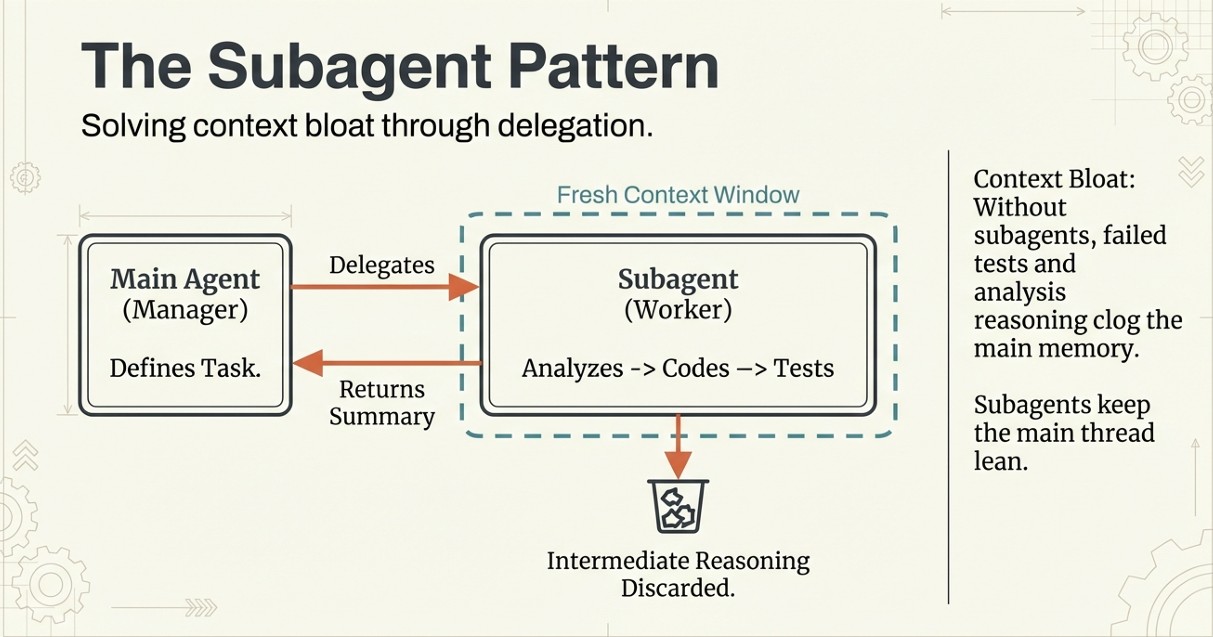
If you’ve used Claude Code for a while, you’ve probably hit the context wall. The conversation grows, responses degrade, and eventually you’re reaching for /clear or starting fresh. Subagents solve this problem by isolating heavy work into separate context windows.
What Subagents Actually Are
A subagent is a preconfigured AI personality that Claude Code can delegate tasks to. Each one has:
- Its own system prompt defining how it operates
- Its own fresh context window (isolated from your main conversation)
- A configurable set of tools (following least privilege)
- Reusability across projects
Think of it like delegating to a contractor. You write up what needs doing (the prompt), they show up with their own tools and expertise, do the work independently, and hand you back the result. You don’t need to know every step they took.
Why Context Isolation Matters
Imagine this, you are refactoring a module, you asked Claude to analyze the existing code, propose three approaches, implement the winner, write tests, and update documentation. By the time you got to tests, Claude had forgotten details from the analysis phase. The context window was stuffed with intermediate reasoning that no longer mattered.
Without subagents, your main conversation accumulates everything:
| Task | What Happens |
|---|---|
| “Analyze this module” | Claude reads 15 files, adds analysis to context |
| “Compare approaches” | Previous analysis + new comparison reasoning |
| “Implement option B” | All of the above + implementation details |
| “Write tests” | Context is now bloated with stale analysis |
Subagents sidestep this. They receive one prompt, work in their own window, and return one condensed response. Your main thread stays lean. If I’d delegated “analyze and propose approaches” to a subagent, I’d have gotten back a clean summary without the intermediate file contents clogging my context.
Creating Your First Subagent
Run /agents and select “Create new agent”. You’ll specify:
- A name and description (this helps Claude decide when to delegate)
- Which tools the subagent can access
- Which model to use (Sonnet for most tasks, Opus for complex reasoning)
- A system prompt with the agent’s personality and instructions
Here’s a stripped down example for a code reviewer:
# Funny Code Reviewer

A senior engineer who reviews code with humor. Invoke when user says "funny review".

## Tools
Read (read-only tools only)

## Model
sonnet

## System Prompt
You are a staff senior engineer with a dry sense of humor. Review code for bugs,
style issues, and improvement opportunities. Deliver feedback with wit but keep
it constructive. No write access needed.
Parallel Subagents: The /infinite Pattern
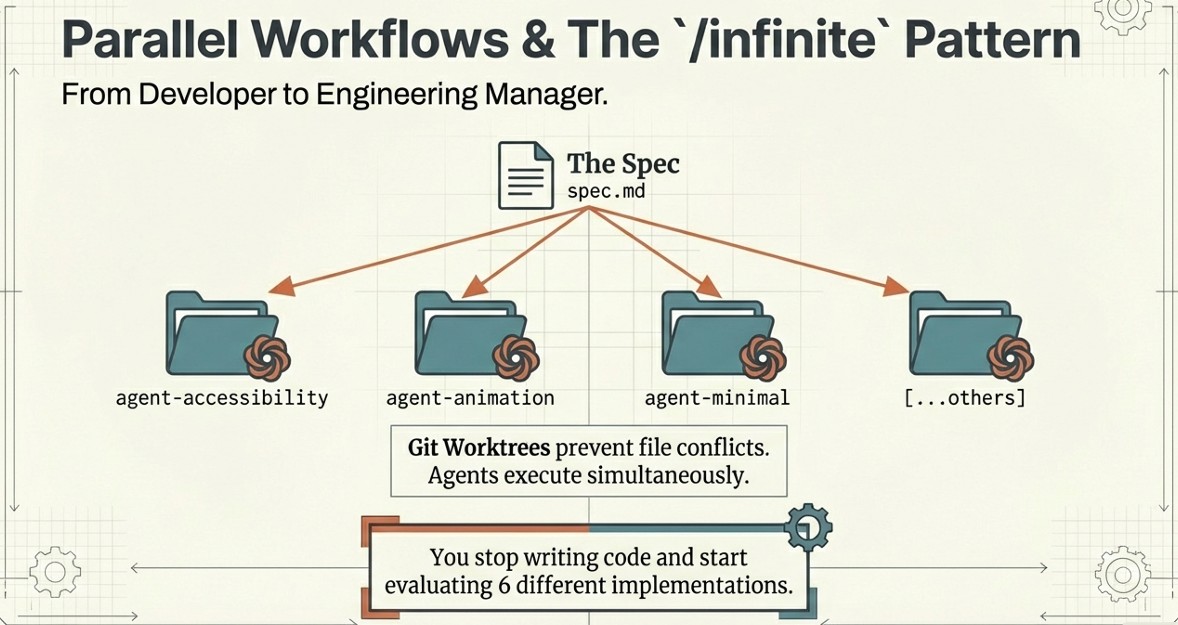
Running multiple Claude Code instances on independent tasks is useful, but running parallel subagents takes this further. The /infinite command (credit to IndieDevDan’s repository) demonstrates this pattern:
/infinite specs/hero.spec components/heroes 6This spawns 6 subagents simultaneously, each implementing a UI component differently based on the spec file. Each agent works in complete isolation, unaware of the others. You review all variations and pick the best one.
The magic is in how it generates prompts. The command:
- Reads and analyzes your spec file
- Surveys existing implementations in the output directory
- Dynamically generates unique prompts for each subagent (Meta Prompting)
- Assigns creative directions so agents don’t duplicate each other
Six agents produced six genuinely different implementations: one focused on accessibility, another on animation, another on minimal dependencies. Without the dynamic prompt generation, you’d get six variations of the same approach.
Git Worktrees for Multi-Agent Work
When you’re running multiple Claude Code instances locally, git worktrees keep everything organized. A worktree lets you check out multiple branches into separate directories without cloning the repo again.
cloud-code-crash-course/
├── hookup/              # Original (project/hookup branch)
├── agent-animations/    # Worktree 1 (separate branch)
└── agent-hero-redesign/ # Worktree 2 (separate branch)
Each agent works on its own branch. If you like the result, merge it. If not, delete the worktree and branch. Your original code stays untouched throughout.
The course demonstrated this with three simultaneous Claude instances (two local worktrees, one cloud), each implementing a different feature. The instructor ran all three in parallel, then merged them into a single branch with Claude handling the conflict resolution. The whole workflow took maybe 15 minutes for what would have been an hour of sequential work.
The Orchestration Tradeoff
Parallel agents scale your output, but they add coordination overhead. You’re now a manager, not just a developer. During the course demo, I noticed the instructor spending as much time switching between terminals and reviewing outputs as the agents spent coding. The merge step also required judgment calls about which implementation to keep when agents made different architectural choices.
This is the real skill shift with multi-agent systems. You’re not writing code line by line. You’re writing specs, reviewing implementations, and deciding which AI-generated approach best fits your constraints. Git worktrees make the mechanics manageable, but the cognitive load moves from “how do I implement this” to “how do I evaluate these six implementations.”
For simple tasks, this overhead isn’t worth it. For exploratory work where you genuinely want multiple approaches, or for parallelizable features with clear specs, the time savings are real.
Security: What AI Agents Handle Well (and What They Don’t)
If you’re expecting Claude Code to handle security for you, adjust your expectations. A December 2025 study by Tenzai called “Bad Vibes:Comparing the Secure Coding Capabilities of Popular Coding Agents” tested all the major coding agents (Cursor, Claude Code, Codex, Replit, Devin) by having each build identical applications. The result? 69 vulnerabilities across 15 apps. Every agent shipped vulnerable code.
Solved Vulnerability Classes
Agents consistently avoid problems with clear rules. SQL injection? They use parameterized queries. Cross-site scripting? Frameworks escape output properly. These vulnerability classes have built-in framework protections, so agents learned the patterns from their training data.
The SSRF Problem
All five agents introduced SSRF (Server-Side Request Forgery) vulnerabilities. There’s no universal rule for safe versus dangerous URL fetches because the answer depends entirely on context. When clear guardrails don’t exist, agents struggle.
The study confirms what experienced engineers already suspected: agents excel where deterministic rules exist and fail where judgment calls require understanding intent. I use Claude Code to move faster on implementation, but threat modeling and security architecture stay with me.
Key Takeaways
Context engineering is prompt engineering’s evolution. Static prompts don’t cut it for agents. You need dynamic context assembly from multiple sources, and Claude Code’s three-tier memory hierarchy (user, project, dynamic imports) gives you explicit control over what the model knows.
The extension system follows a clear hierarchy. MCP connects external tools (always loaded, costs tokens). Skills load on-demand based on relevance (more efficient). Hooks enforce hard rules that override soft guidance. Plugins bundle everything for team distribution.
Subagents solve the context bloat problem. Heavy tasks run in isolated context windows, returning condensed results. Your main conversation stays lean. Combine with git worktrees for parallel workflows that would take longer sequentially.
Security remains your job. Agents handle rule-based vulnerabilities (SQLi, XSS) well but miss authorization, business logic, and SSRF consistently. Treat AI-generated code like junior developer code: review everything, especially access control.
Start simple, extend as needed. Run
/init, edit your CLAUDE.md, learn/compactand/rewind. Add one MCP server, one hook, one skill. Plugins and parallel agents come later when you’ve outgrown the basics.
Closing Thoughts
Claude Code represents a shift in how we interact with AI coding tools. It’s not just autocomplete or chat. It’s an agent with memory, tools, and the ability to delegate work. The learning curve is steeper than Copilot, but the ceiling is higher too.
What surprised me most was how much the workflow resembles managing people. You write clear specs (CLAUDE.md), delegate tasks (subagents), set boundaries (hooks), and review output (git worktrees). The skill isn’t typing code faster. It’s communicating intent clearly and knowing when to trust the output.
I hope you found this walkthrough useful. If you have questions or want to share your own Claude Code patterns, find me on LinkedIn.